Easy and Secure OpenClaw Deployment Guide
Table of Contents
Overview #
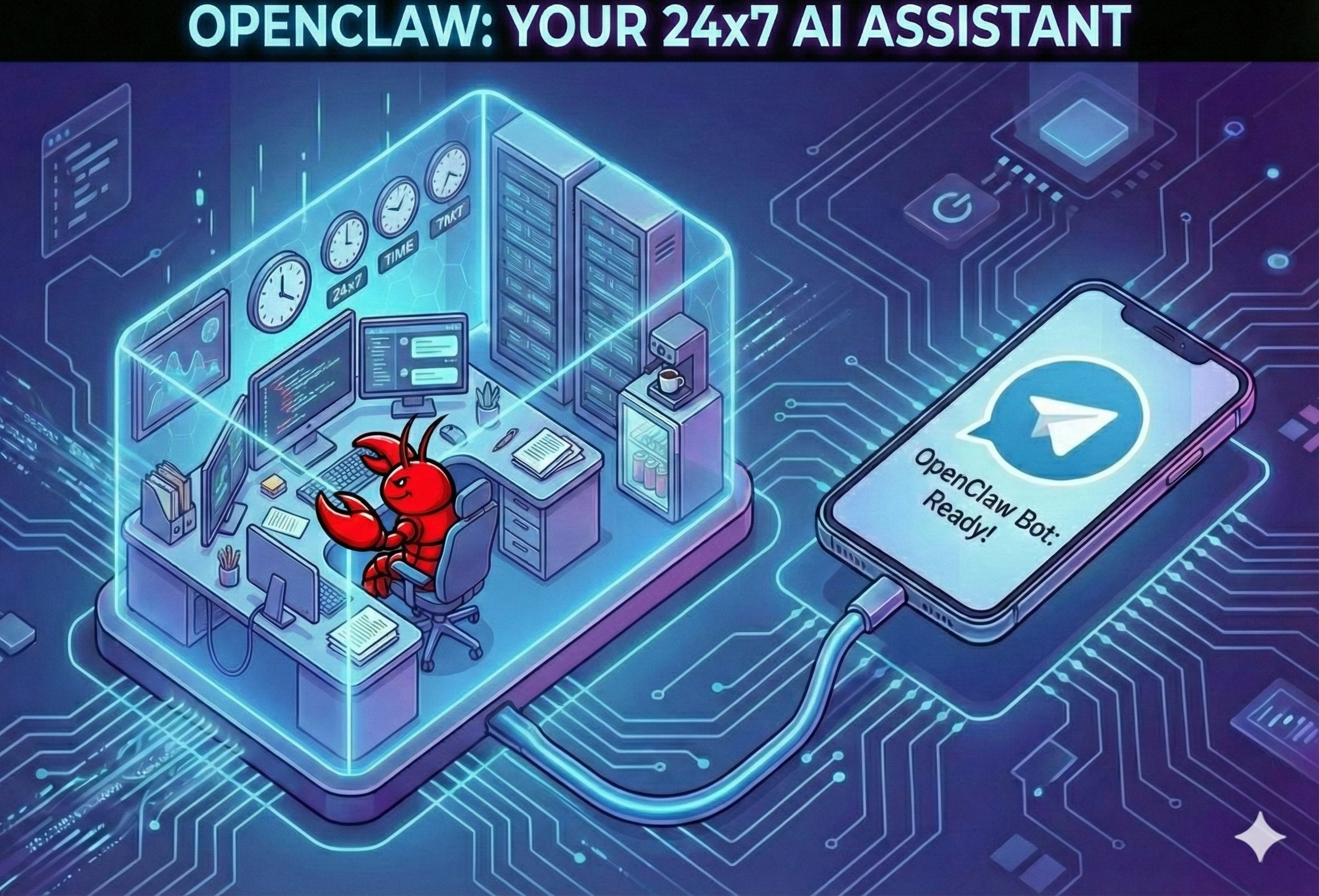
This guide walks you through everything you need, to deploy OpenClaw agent in few clicks, on a private and secure server, available via Telegram 24x7.
No coding or command-line experience needed.
- Fully Secure Infrastructure: this guide sets up a hardened server for you automatically - encrypted secrets, firewall rules, and SSH-only access. No data leaves your control. No data leakage or unauthorized access.
- Isolated from your Personal Data: the agent runs on a private cloud server, completely disconnected from your personal computer, files, and accounts. Even if the agent misbehaves, your personal data is never at risk. You control how much access you want to give to your agent.
- Almost Free: No need to buy a Mac Mini or dedicated hardware. It runs perfectly well on an AWS cloud server. AWS gives up to $200 in free credits for new accounts, and free AI models are available via OpenRouter and Google Gemini. You can run for months without spending a dollar.
- Available 24/7 via Telegram: your personal AI assistant lives in your messaging app, ready to respond anytime from any device.
Time to up and running #
~25-30 minutes (15-20 min account setup + 5-8 min deployment)
Technical Skill #
None - just follow the steps and fill in forms
Setup Cost #
~$0 with AWS Infrastructure (Free with AWS Credits) + API usage (Free with OpenRouter)
What we’ll set up: #
- AWS Account with billing alerts
- SSH Key Pair (for secure server access)
- API Key (from Anthropic, OpenAI, Google, or OpenRouter)
- Telegram Bot Token (for messaging your bot)
- Your Telegram Numeric User ID (for security - only you can message the bot)
- Search API Key (optional, for web search tool)
Now that you know what to expect, let’s dive into the setup. We’ll go step by step - starting with your AWS account, then gathering the keys and tokens needed for deployment.
Step 1: AWS Account Setup (5-10 minutes) #
Create an new AWS Account: #
- Go to aws.amazon.com
- Click “Create an AWS Account”
- Use a dedicated email address (not your personal email)
- Complete phone verification
- Enter credit card (you’ll get a $1 verification charge, refunded)
Enable Billing Alerts (Important) #
Setup billing email preferences
- Go to AWS Budgets Console
- Login to AWS if asked.
- Click Edit “Alert preferences”
- Check both Receive AWS Free Tier alerts and “Receive CloudWatch billing alerts”
- Click “Update preferences”
Set up a billing alerts:
- Go to AWS Budgets Console
- Click “Create a budget”
- Choose “Monthly cost budget”
- Set the budget amount: $10 (or your comfort level)
- Add your email for notifications
- Click “Create budget”
Checkpoint: You should receive a confirmation email.
With your AWS account ready, the next step is creating a secure way to access your server.
Step 2: Create SSH Key Pair (2 minutes) #
The SSH key is your secure “password” to access the server. Without it, no one (including you) can log in.
- Go to EC2 Console
- Make sure you’re in your preferred region (top right dropdown)
- Recommended:
us-east-1(N. Virginia) or closest to you
- Recommended:
- In left sidebar, click “Key Pairs” (under Network & Security)
- Click “Create key pair”
- Configure:
- Name:
openclaw-key - Type: RSA
- Format:
.pem(for Mac/Linux) or.ppk(for Windows with PuTTY)
- Name:
- Click “Create key pair”
- The file downloads automatically - SAVE IT SECURELY
IMPORTANT: You cannot re-download this file. Store it in a secure folder on your computer.
Secure the key file #
Mac:
- Open Finder and go to your Downloads folder
- Press Cmd + Shift + G, type
~/.ssh/and hit Enter- If the folder doesn’t exist: press Cmd + Shift + G, type
~/, create a new folder called.ssh
- If the folder doesn’t exist: press Cmd + Shift + G, type
- Drag
openclaw-key.pemfrom Downloads into the.sshfolder - Right-click the
.pemfile → “Get Info” - Expand “Sharing & Permissions” at the bottom
- Set your user to “Read only”, “everyone” to “No Access”
Windows:
- Move to file from Downloads folder to your
C:\Users\YourName\.ssh\folder - Right-click → Properties → Security → Remove all users except yourself
Note down:
SSH Key Name: openclaw-key
SSH Key Location: ~/.ssh/openclaw-key.pem (or your path)
AWS Region: _____________ (e.g., us-east-1)
Your server access is secured. Now let’s get the credentials your bot needs to talk to an AI model.
Step 3: Get Your LLM API Key (3-5 minutes) #
Choose ONE provider (you can add more later):
Option A: OpenRouter (Recommended, Free) #
OpenRouter provides a unified API to access multiple AI models (Claude, GPT-4, Llama, etc.) with a single API key. Great for trying different models, and has free models available (see table below).
- Go to https://openrouter.ai/
- Sign up or log in
- Click on profile icon -> Settings
- Select API Keys from the left sidebar and click on create.
- Enter Name and Credit limit ($1 or your preference).
- Select Reset limit “Monthly” and Expiration “180 days” (or your preference)
- Click Create and Copy the key (starts with
sk-or-)
Pricing:
- Many Quality Free tier models available. See full list above.
- Option for Pay-per-use based on the model you choose
- Different models have different costs
- No monthly minimums
Note down:
LLM Provider: OpenRouter
API Key: sk-or-________________________________
Option B: Google Gemini (Free with rate limit) #
Show
Google offers a generous free tier, making it also a great choice for testing or light usage.- Go to aistudio.google.com
- Sign in with your Google account
- Click “Get API key” in the bottom left sidebar
- Click “Create API key”
- Select a Google Cloud project (or create one)
- Copy the key immediately (starts with
AIza)
Limits:
- Free tier: Upto 15 requests/minute, 1000 requests/day.
- For higher limits, enable billing in Google Cloud Console
Note down:
LLM Provider: Google
API Key: AIza_______________________________________
Tier: [ ] Free  [ ] Paid
Option C: Anthropic Claude (Paid) #
Show
- Go to console.anthropic.com
- Sign up or log in
- Click “Settings” (gear icon) → “API Keys”
- Click “Create Key”
- Name it:
openclaw-bot - Copy the key immediately (starts with
sk-ant-)
Set spending limit:
- Go to Settings → Plans & Billing
- Under “Spending Limits”, click “Edit”
- Set Monthly limit: $5 (or your preference)
- Enable email notifications
- Click “Save”
Note down:
LLM Provider: Anthropic
API Key: sk-ant-________________________________
Spending Limit: $______/month
Option D: OpenAI (Paid) #
Show
- Go to platform.openai.com
- Sign up or log in
- Click your profile → “API keys”
- Click “Create new secret key”
- Name it:
openclaw-bot - Copy the key immediately (starts with
sk-)
Set spending limit:
- Go to Settings → Limits
- Set “Monthly budget”: $5 (or your preference)
- Enable email notifications
- Click “Save”
Note down:
LLM Provider: OpenAI
API Key: sk-________________________________________
Spending Limit: $______/month
You’ve got the AI brain sorted out , now let’s create the Telegram bot that will be your interface to it.
Step 4: Create Telegram Bot (3 minutes) #
- Open Telegram on your phone or desktop
- Search for @BotFather (verified with blue checkmark)
- Start a chat and send:
/newbot - Follow the prompts:
- Name:
My OpenClaw Bot(or any display name) - Username:
yourname_openclaw_bot(must end inbot, must be unique)
- Name:
- BotFather will reply with your bot token
- Looks like:
7123456789:AAHk8vZPqRxVNbC3dEfGhIjKlMnOpQrStUv
- Looks like:
- Copy this token and save it securely
Note down:
Telegram Bot Username: @_______________________bot
Telegram Bot Token: ____________________________
Find Your Telegram Numeric User ID #
Your would need your Telegram numeric user ID to connect with the agent securely.
Important: You must use your numeric user ID, not your
@username. The@usernameformat does not work.
- Open Telegram and search for @userinfobot (Make sure you have selected exactly this bot. There are other duplicates as well. Don’t use them)
- Start a chat and send
/start - The bot will reply with your numeric user ID (e.g.,
123456789) - Copy this number , you’ll need it during deployment
Note down:
Telegram User ID: _______________________
Your core setup is complete. This next step is optional but gives your bot the ability to search the web.
Step 5: Search API Key (Optional) #
If you want your bot to search the web, you’ll need a search API key.
- Sign up at Brave API (or your preferred search API provider e.g. Tavily, SerpAPI, etc.)
- Create an API key
- Copy the key
Note down:
Search API Key: _________________________________ (optional)
Before we launch, let’s make sure you have everything gathered in one place.
Step 6: Pre-Deploy Checklist #
Before proceeding, confirm you have everything:
AWS Setup #
- AWS account created
- Billing alerts enabled.
- SSH key pair created and
.pemfile saved securely - Noted which AWS region you’re using
API Credentials #
- Chose LLM provider (OpenRouter, Google, Anthropic or OpenAI)
- API key copied and saved
- Spending limit set on provider’s website (if applicable)
Telegram Setup #
- Bot created via @BotFather
- Bot token copied and saved
- Noted your Telegram numeric user ID (from @userinfobot)
Optional: Note Your IP Address #
For extra security, you can restrict SSH access to only your IP address.
- Go to whatismyip.com
- Copy your IPv4 address (e.g.,
203.0.113.50)
Note: You can skip this and it leave as “AUTO” during deployment. SSH will be open to all IPs (0.0.0.0/0). You’ll be reminded to restrict it after deployment.
Your Information Summary #
Make a note of all of following before deploying:
╔═══════════════════════════════════════════════════════════════╗
║  OPENCLAW DEPLOYMENT INFORMATION                              ║
╠═══════════════════════════════════════════════════════════════╣
║                                                               ║
║  AWS REGION:          _______________________                 ║
║  SSH KEY PAIR NAME:   _______________________                 ║
║                                                               ║
║  LLM PROVIDER:        [ ] Anthropic  [ ] OpenAI               ║
║                       [ ] Google     [ ] OpenRouter           ║
║  API KEY:             _______________________                 ║
║                                                               ║
║  TELEGRAM BOT TOKEN:  _______________________                 ║
║  TELEGRAM USER ID:    _______________________                 ║
║                                                               ║
║  SEARCH API KEY:      _______________________ (optional)      ║
║  YOUR IP ADDRESS:     _______________________ (optional)      ║
║                                                               ║
╚═══════════════════════════════════════════════════════════════╝
Everything’s ready. Time to deploy, this is where it all comes together.
Step 7: Launch the Stack #
⚠️ Disclaimer: This template is designed for personal AWS accounts with a single user. It is not intended for organizational, enterprise, or shared AWS environments. By deploying this stack, you acknowledge and accept this limitation.
Click the button for your preferred AWS region:
| Region | Location | Launch |
|---|---|---|
| us-east-1 | N. Virginia |  |
| us-west-2 | Oregon | |
| eu-west-1 | Ireland | |
| ap-southeast-1 | Singapore | |
Note: Choose a region close to you for best performance. If your region isn’t listed, you can manually upload the template (see Manual Upload below).
Step 8: Fill in the Form #
After clicking “Launch Stack”, you’ll see the CloudFormation console.
Page 1: Create Stack #
- Template is pre-filled → Click “Next”
Page 2: Specify Stack Details #
Stack name: openclaw (or any name you prefer)
Fill in the form using your saved information:
| Field | What to Enter |
|---|---|
| SSH Key Pair | Select your key from dropdown (e.g., openclaw-key) |
| Your IP Address | Leave as AUTO or enter your IP (e.g., 203.0.113.50/32) |
| Server Size | t3.small (free, recommended) |
| AI Provider | Select OpenRouter, Google, Anthropic, or OpenAI |
| API Key | Paste your API key (starts with sk- or AIza) |
| Telegram Bot Token | Paste token from @BotFather |
| Telegram User ID | Your numeric user ID (e.g., 123456789) from @userinfobot |
| Search API Key | (Optional) Paste your search API key for web search |
Click “Next”
Page 3: Configure Stack Options #
- Leave all defaults → Click “Next”
Page 4: Review and Create #
- Scroll to the bottom
- Check the box: “I acknowledge that AWS CloudFormation might create IAM resources”
- Click “Submit”
Step 9: Deployment (5-8 minutes) #
The stack will now create your server and install everything automatically.
What’s Happening: #
CREATE_IN_PROGRESS → Creating security group...
CREATE_IN_PROGRESS → Launching EC2 instance...
CREATE_IN_PROGRESS → Installing Node.js...
CREATE_IN_PROGRESS → Installing OpenClaw...
CREATE_IN_PROGRESS → Configuring Telegram bot...
CREATE_IN_PROGRESS → Starting services...
CREATE_COMPLETE    → Done!
Expected time to deploy: 5-8 minutes
How to Monitor: #
- Stay on the CloudFormation page
- Click the “Events” tab to see progress
- Wait for status to show “CREATE_COMPLETE”
Once the status shows CREATE_COMPLETE, you can grab your connection details.
Get Your Connection Info #
- Click the “Outputs” tab
- You’ll see all the information you need:
| Output | What It Is |
|---|---|
| InstanceID | Your EC2 instance ID |
| PublicIP | Your server’s IP address |
| SSHCommand | Copy-paste command to connect via SSH |
| TunnelCommand | Command to create SSH tunnel for OpenClaw Command Center access |
| GatewayTokenRetrieval | Link to Secrets Manager to retrieve your OpenClaw Command Center password |
| WebUIAccess | Step-by-step instructions for OpenClaw Command Center |
| TelegramSetup | How to start using your Telegram bot |
| SecurityNote | Security reminder about SSH access |
| InstallationLogs | Command to view installation logs |
| ServiceStatus | Command to check if OpenClaw is running |
IMPORTANT : Save these outputs! Copy them to a text file for easy reference in future.
With your server up and your connection info saved, let’s make sure everything actually works.
Step 10: Test Your Bot! #
Your bot is now live! Your Telegram user ID is already allowlisted, so no pairing is needed. Your bot would only respond to messages from your telegram id.
- Open Telegram
- Find your bot (the one you created with @BotFather)
- Click on
Startbutton OR Send a message:**Hello! - Your bot should respond!
It might take few seconds for the bot to respond the first time. Subsequent interactions will be immediate.
Bot not responding? Check the Troubleshooting section below.
Congratulations! You now have a secure, self-hosted AI assistant running 24/7, accessible anytime through Telegram. Start putting it to work!
Good job on completing the setup! Here’s how your day-to-day interaction with the bot will look.
Daily Usage #
Chat with Your Bot: #
Open Telegram → Message your bot → Get instant response
Check Bot Status or Actions: #
- Message your bot:
What's your status? - Message your bot:
What all can you do for me? - Message your bot:
What the weather like?
Admin Tasks Through Telegram Bot: #
Message your bot in natural language to install or update a skill/tool, or use /commands for specific commands.
You can do the following admin tasks using the bot:
- Start / Stop Gateway
- Add new Models and Providers
- Download and install software and packages (if web search API key is provided)
- Spawn sub-agents for long-running tasks
For most day-to-day use, Telegram is all you need. But if you ever want to fine-tune settings or manage your agent’s skills, here’s how to access the Command Center.
Connect to OpenClaw Command Center. #
The OpenClaw Command Center is a web interface for managing your bot. It lets you view detailed logs, update agent configurations, add or modify skills, and test changes via a built-in chat. For daily use, just message your bot via Telegram!
Retrieving Your Gateway Token #
You would need a gateway token which is your password for the Command Center. You only need this when you want to change settings.
- In the CloudFormation Outputs tab or in the file where you saved the outputs, click the GatewayTokenRetrieval link
- This opens AWS Secrets Manager with your token
- Click “Retrieve secret value” to reveal it
- Copy the
tokenvalue
Save this token securely! You’ll need it to access the OpenClaw Command Center.
Accessing the OpenClaw Command Center: #
1: Create an SSH tunnel (from your local computer):
Mac/Linux Terminal:
ssh -i ~/.ssh/openclaw-key.pem -L 18789:localhost:18789 ubuntu@YOUR_IP
Windows PowerShell:
ssh -i C:\Users\YourName\.ssh\openclaw-key.pem -L 18789:localhost:18789 ubuntu@YOUR_IP
2: Keep that terminal window open
3: Open your browser and go to: http://localhost:18789/overview
4: Enter your gateway token:
- 4.1 Find “Gateway Access” → “Gateway Token”
- 4.2 Paste your token and click “Connect”
- 4.3 Status should turn to Connected
5: Navigate using the sidebar:
- Agents: Update agent configurations, skills, etc.
- Chat: Chat with the agent to verify your changes
6: When done, always close the ssh connection by pressing Ctrl+C in the terminal to close it securely.
Managing Your Deployment #
Start/Stop AWS Server #
When not used for long preiod, Stop your EC2 instance to freeze the cost.
Stop (when not using):
- Go to EC2 Console
- Select your instance
- Instance State → Stop instance
Start (when needed):
- Go to EC2 Console
- Select your instance
- Instance State → Start instance
- Note: Instance IP address might change! Check new IP in details section.
Update OpenClaw #
SSH into server:
ssh -i ~/.ssh/openclaw-key.pem ubuntu@YOUR_IP
Then run:
sudo -u openclaw bash -c 'export PATH=/home/openclaw/.npm-global/bin:$PATH && npm update -g openclaw'
sudo systemctl restart openclaw-gateway
Delete Everything #
To completely remove OpenClaw and stop all charges:
- Go to CloudFormation Console
- Select your stack (
openclaw) - Click “Delete”
- Confirm deletion
This removes the server, security group, and all associated resources.
Troubleshooting #
Bot Not Responding #
Check if service is running:
ssh -i ~/.ssh/openclaw-key.pem ubuntu@YOUR_IP "sudo systemctl status openclaw-gateway"View logs:
ssh -i ~/.ssh/openclaw-key.pem ubuntu@YOUR_IP "sudo journalctl -u openclaw-gateway -n 50 --no-pager"Restart the service:
ssh -i ~/.ssh/openclaw-key.pem ubuntu@YOUR_IP "sudo systemctl restart openclaw-gateway"Verify your Telegram user ID matches what you entered during deployment. It must be your numeric user ID (get it from
@userinfoboton Telegram).
SSH Connection Failed #
“Permission denied”:
# Fix key permissions
chmod 400 ~/.ssh/openclaw-key.pem
“Connection refused”:
- Check the instance is running in EC2 Console.
- Reboot EC2 Instance.
- Verify you’re using the correct IP (it changes when you stop/start)
“Connection timeout”:
- Your IP might have changed.
- EC2 instance might have stopped or not repond
- Wait for EC2 to be back or try rebooting the instance
If nothing works, delete the current stack and rebuild it.
Stack Creation Failed #
- Go to CloudFormation → Your Stack → Events tab
- Look for the first red “FAILED” event
- Read the “Status reason” for details
Common issues:
- Invalid API key format (must start with
sk-for Anthropic/OpenAI/OpenRouter orAIzafor Google) - Invalid Telegram token format
- Invalid Telegram user ID format (must be a numeric ID or
*) - SSH key doesn’t exist in the selected region
OpenClaw Command Center Not Loading #
- Make sure SSH tunnel is still running (terminal window open)
- Check you’re using
http://nothttps:// - Try a different browser
- Verify EC2 instance is running
- Verify OpenClaw is running (see “Bot Not Responding” above)
Keep track of API Costs, if using paid models #
Message your bot: Show my API usage
To reduce costs:
- Use a cheaper model (free models from OpenRouter See table below)
- Set lower spending limits on your API provider’s website
“I can’t create an AWS account” #
- Ensure your credit card is valid and has available credit
- Try a different browser or disable ad blockers
- Contact AWS support if verification fails
“I lost my SSH key file” #
- You cannot recover it, create a new key pair
- Delete the old one from AWS Console to avoid confusion
“BotFather says username is taken” #
- Bot usernames must be globally unique
- Try adding numbers or your name:
johnsmith_openclaw_2024_bot
“My IP address keeps changing” #
- During deployment, leave the IP field as “AUTO”
- Or use
0.0.0.0/0to allow SSH from anywhere (less secure) - Consider using a VPN with a static IP
Cost Breakdown #
Infrastructure Cost #
| Component | Estimated Monthly Cost |
|---|---|
| EC2 t3.small (24/7) | ~$10-12 |
| EBS Storage (20GB gp3) | ~$1.60 |
| Data Transfer | ~$1-2 |
| Total (t3.small) | ~$12-15 |
You will get free AWS credit of $100 when you create a new account. This is valid for 6 months. More details here
$100 more free credit can be added on top, when you complete certain tasks. Totalling to $200. More information here
API Costs (depends on usage): #
- OpenRouter: Free models available! (see table below)
- Google Gemini: Free tier available! (Upto 15 req/min, 1000 req/day)
- Anthropic Claude: ~$3-15/month typical
- OpenAI GPT-4: ~$5-20/month typical
Free OpenRouter Models: #
| # | Name | Slug | Details |
|---|---|---|---|
| 1 | StepFun: Step 3.5 Flash (free) Exceptional 196B MoE; tops AIME 2025 math and coding benchmarks | stepfun/step-3.5-flash:free | Tool Calling ✅ Generous Rate Limit ✅ No Training ✅ No Training (OR) ✅ No Prompt Retention ❌ No Publishing ✅ |
| 2 | Arcee AI: Trinity Large Preview (free) Competitive 400B MoE rivaling Llama 4 Maverick; excels at creative writing | arcee-ai/trinity-large-preview:free | Tool Calling ❌ Generous Rate Limit ✅ No Training ✅ No Training (OR) ✅ No Prompt Retention ✅ No Publishing ✅ |
| 3 | OpenAI: gpt-oss-120b (free) OpenAI’s open-weight flagship; near o4-mini reasoning with strong coding | openai/gpt-oss-120b:free | Tool Calling ✅ Generous Rate Limit ❌ No Training ❌ No Training (OR) ✅ No Prompt Retention ❌ No Publishing ❌ |
| 4 | Z.ai: GLM 4.5 Air (free) Strong tool-use/coding model; beats Gemini Pro 2.5 on function calling | z-ai/glm-4.5-air:free | Tool Calling ✅ Generous Rate Limit ❌ No Training ✅ No Training (OR) ✅ No Prompt Retention ✅ No Publishing ✅ |
| 5 | Qwen: Qwen3 4B (free) Rivals Qwen2.5-72B performance; remarkably strong math/code for 4B | qwen/qwen3-4b:free | Tool Calling ✅ Generous Rate Limit ❌ No Training ✅ No Training (OR) ✅ No Prompt Retention ✅ No Publishing ✅ |
| 6 | Mistral: Mistral Small 3.1 24B (free) Best-in-class efficiency at 24B; rivals models 3x larger | mistralai/mistral-small-3.1-24b-instruct:free | Tool Calling ✅ Generous Rate Limit ❌ No Training ✅ No Training (OR) ✅ No Prompt Retention ✅ No Publishing ✅ |
| 7 | Meta: Llama 3.3 70B Instruct (free) Reliable workhorse matching Llama 3.1 405B; excellent all-around | meta-llama/llama-3.3-70b-instruct:free | Tool Calling ✅ Generous Rate Limit ❌ No Training ❌ No Training (OR) ✅ No Prompt Retention ❌ No Publishing ❌ |
| 8 | DeepSeek: R1 0528 (free) Near o3-level reasoning with 45% fewer hallucinations than original R1 | deepseek/deepseek-r1-0528:free | Tool Calling ❌ Generous Rate Limit ❌ No Training ✅ No Training (OR) ✅ No Prompt Retention ✅ No Publishing ✅ |
| 9 | Google: Gemma 3 27B (free) Beats Gemini 1.5 Pro on some benchmarks; best Gemma 3 for reasoning | google/gemma-3-27b-it:free | Tool Calling ❌ Generous Rate Limit ❌ No Training ✅ No Training (OR) ✅ No Prompt Retention ❌ (55d) No Publishing ✅ |
Legend:
✅ = privacy-friendly | ❌ = privacy concern | (55d) = retained for 55 days | (OR) - Open Router
Money-saving tips: #
- Stop EC2 instance when not using
- Earn extra credits from AWS
- Set up AWS billing alerts
- Set spending limits on API providers
- Use free models from OpenRouter
Security Best Practices #
Keep these SECRET and never share: #
- Your SSH key file (
.pem) - Your API key
- Your Telegram bot token
- Your Gateway token (provided after deployment)
Safe to share: #
- Your AWS region
- Your SSH key pair NAME (not the file)
- Your Telegram numeric user ID
- Your bot’s username
Quick Reference Card #
Save this for easy access:
╔═══════════════════════════════════════════════════════════════╗
║  OPENCLAW QUICK REFERENCE                                     ║
╠═══════════════════════════════════════════════════════════════╣
║                                                               ║
║  SERVER IP: _______________________                           ║
║                                                               ║
║  SSH CONNECT:                                                 ║
║  ssh -i ~/.ssh/openclaw-key.pem ubuntu@[IP]                   ║
║                                                               ║
║  OpenClaw Command Center TUNNEL:                              ║
║  ssh -i ~/.ssh/openclaw-key.pem -L 18789:localhost:18789 \    ║
║      ubuntu@[IP]                                              ║
║  Then open: http://localhost:18789                            ║
║                                                               ║
║  GATEWAY TOKEN: _______________________                       ║
║                                                               ║
║  TELEGRAM BOT: @_______________________                       ║
║                                                               ║
║  RESTART SERVICE:                                             ║
║  ssh -i ~/.ssh/openclaw-key.pem ubuntu@[IP] \                 ║
║      "sudo systemctl restart openclaw-gateway"                ║
║                                                               ║
║  VIEW LOGS:                                                   ║
║  ssh -i ~/.ssh/openclaw-key.pem ubuntu@[IP] \                 ║
║      "sudo journalctl -u openclaw-gateway -f"                 ║
║                                                               ║
╚═══════════════════════════════════════════════════════════════╝
Manual Upload #
If you prefer to upload the template manually instead of using the Launch Stack button:
- Download the template file:
openclaw-cloudformation.yamlfrom here - Go to CloudFormation Console
- Click “Create stack” → “With new resources”
- Select “Upload a template file”
- Choose the downloaded YAML file
- Click “Next” and continue with Step 2 above
Next Steps #
Now that OpenClaw is running: Visit the OpenClaw Documentation for detailed guides and reference.
- Explore basic commands - Message your bot to learn what it can do
- Add skills - Carefully add capabilities via openclaw command center
- Set up additional channels - Add Discord or WhatsApp
- Monitor usage - Keep an eye on API costs the first week
Thank you for reading. Feel free to connect with me on LinkedIn if you need any help